Casio
PC Software for Casio PCR-T500 Cash Register
PC Software for Casio PCR-T500 Cash Register
Couldn't load pickup availability
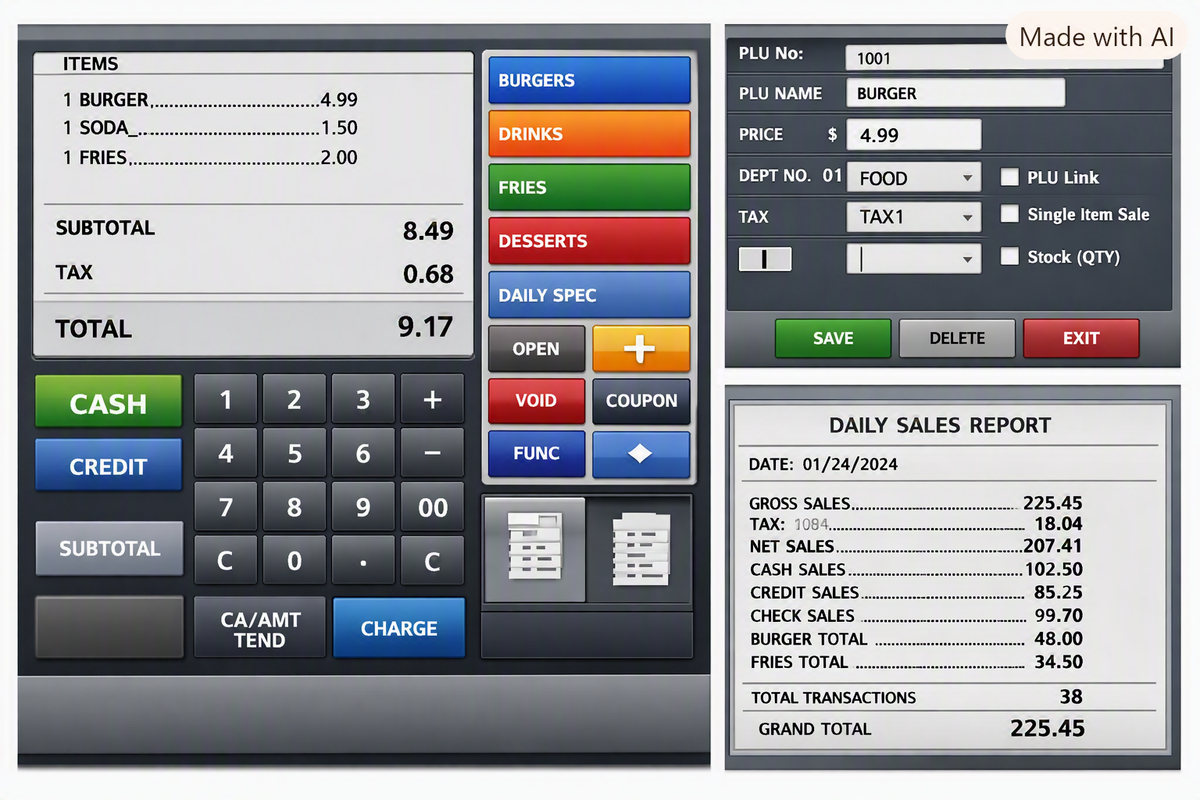
The Casio PCR Series PC Programming Utility Software is an intuitive Windows-based configuration application designed to simplify and accelerate setup for Casio PCR-T500 and compatible PCR-range electronic cash registers. By shifting item entry, clerk management, and tax programming from the cash register keypad to a computer screen, business managers can build or edit their register setup in a fraction of the time. Programmed files are transferred seamlessly between the PC and the cash register using a standard SD card.
Key Features
-
Intuitive PC Setup Interface: User-friendly Windows desktop application with visual icons and structured sub-menus to bypass complex register key-code manual programming.
-
Full Programming Control: Configure PLUs (item pricing and 8-character descriptors), department categories, group totals, clerk accounts, and general system settings directly on your PC.
-
Custom Receipt Branding & Messages: Design custom receipt header/footer text messages and upload store graphic logos for printouts.
-
SD Card Data Portability: Save register setups to an SD card for quick download into single or multiple Casio PCR cash registers.
-
Scan File Backup Protection: Safely creates backup copies of barcode scanning files without overwriting or erasing existing scanned products stored in the register's internal memory.
-
Report Configuration: Pre-configure Electronic Journal settings, receipt/journal print toggles, and management X/Z report output preferences.
Technical Specifications
| Feature | Specification |
| Product Type | Programming Utility Software for PC |
| Compatible Cash Registers | Casio PCR Series (specifically PCR-T500 and companion PCR models) |
| Operating System | Windows-Based PC |
| Transfer Medium | SD Card (Formatted FAT16/FAT32; SD card sold separately) |
| Programmable Parameters | PLUs, Departments, Groups, Clerks, Tax Tables, Receipt Header/Logo, X/Z Options |
| Barcode Scanner Limitations | Does NOT modify or program scanning PLUs/barcodes (Backup only) |
Step-by-Step Data Transfer Guide
Insert the SD card into the Casio cash register card slot. Turn the key switch to PGM mode, navigate to SD CARD, and select FORMAT SD.
Export current cash register programming and memory files directly onto the newly formatted SD card.
Remove the SD card from the register, insert it into your Windows PC, launch the Casio Programming Utility, click OPEN, and select the data files from the card.
Edit PLUs, department pricing, tax rates, clerk IDs, and custom receipt logo messages within the PC software interface.
Click SAVE to write updated program files back to the SD card. Re-insert the card into the Casio register and select the import/load function to update the machine.
Insert the SD card into the Casio cash register card slot. Turn the key switch to PGM mode, navigate to SD CARD, and select FORMAT SD.
Export current cash register programming and memory files directly onto the newly formatted SD card.
Remove the SD card from the register, insert it into your Windows PC, launch the Casio Programming Utility, click OPEN, and select the data files from the card.
Edit PLUs, department pricing, tax rates, clerk IDs, and custom receipt logo messages within the PC software interface.
Click SAVE to write updated program files back to the SD card. Re-insert the card into the Casio register and select the import/load function to update the machine.
Share